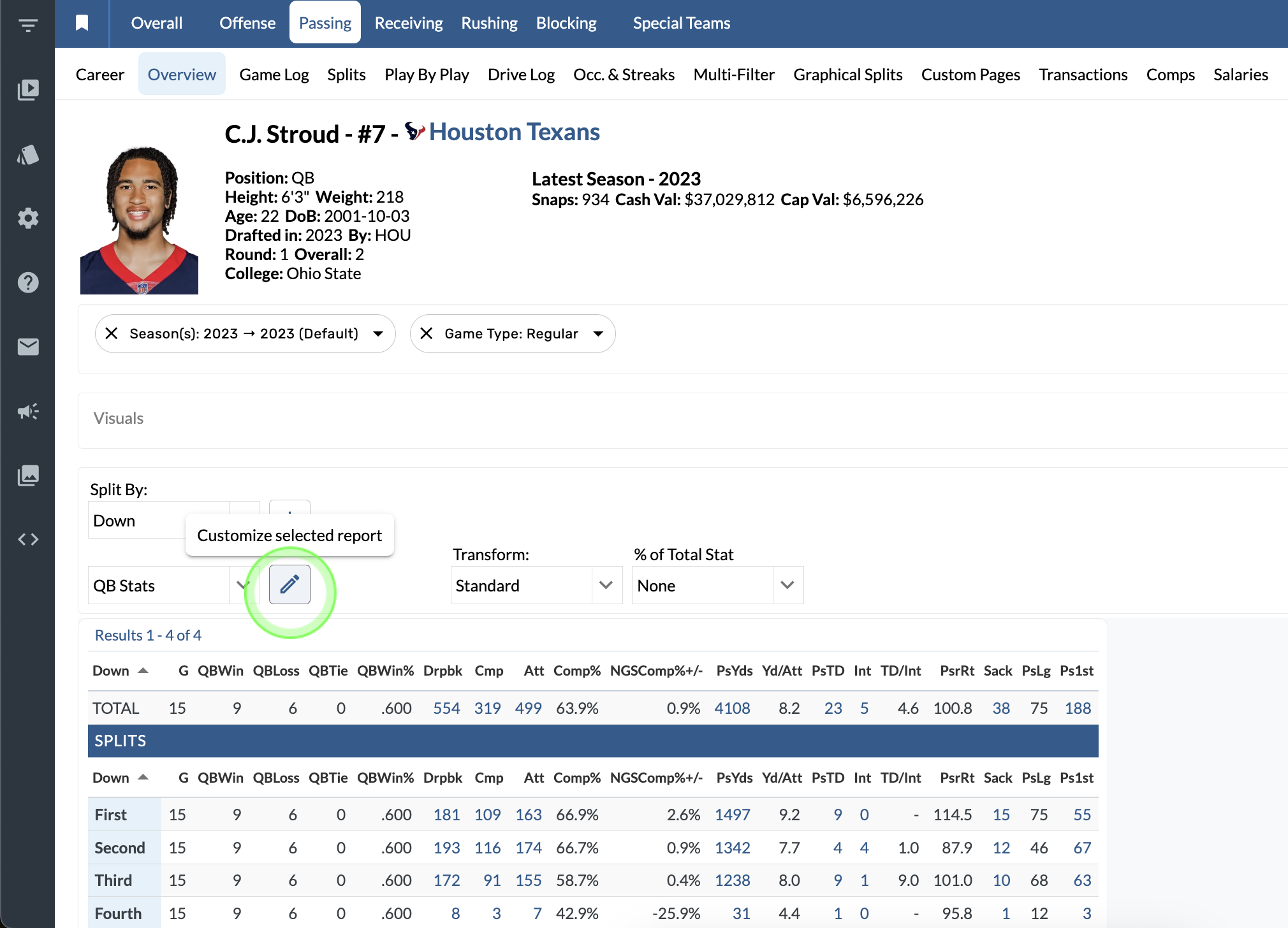
Custom Report Builder
-
Tap the pencil icon to open the Custom Report Builder.
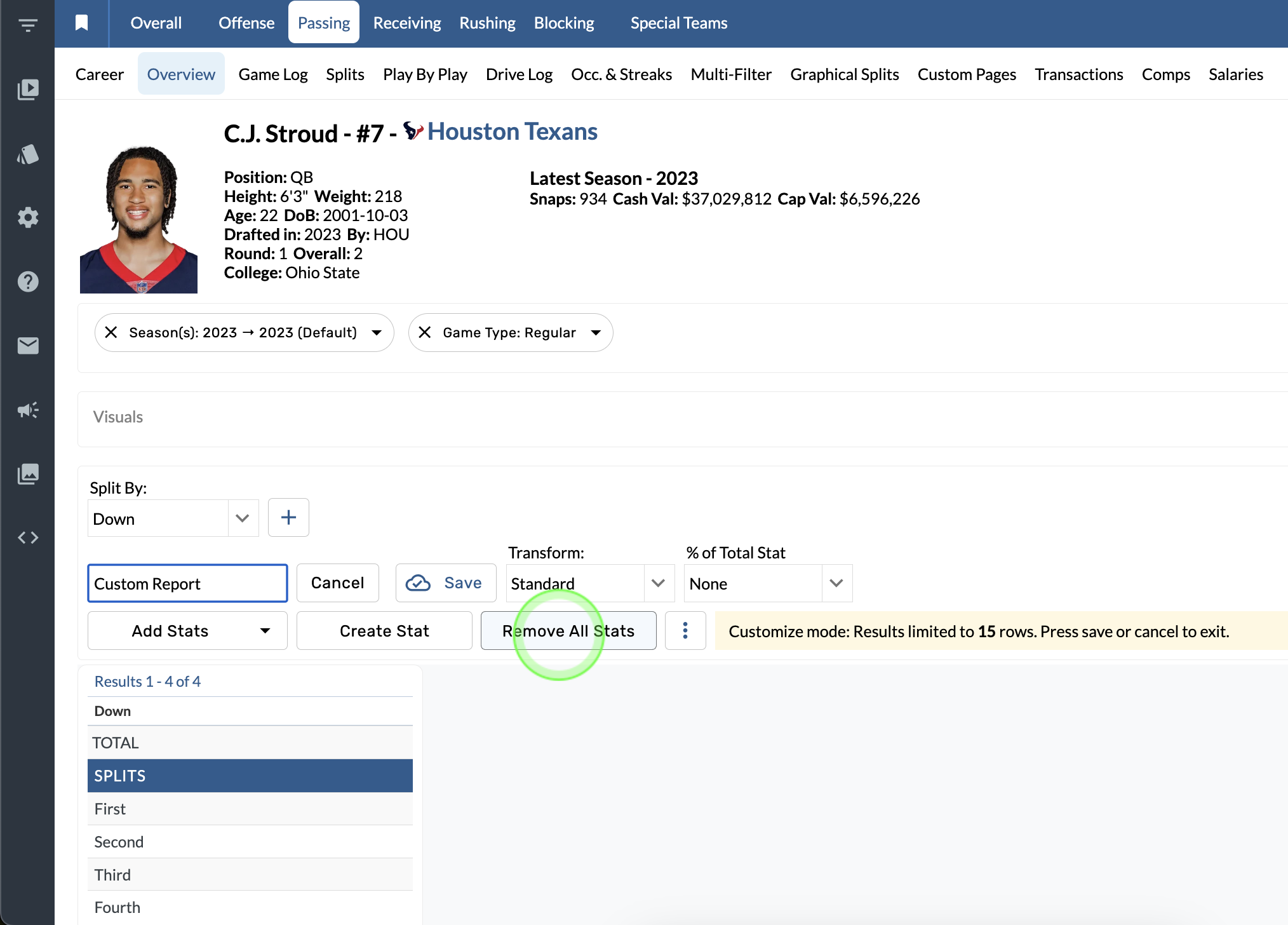
Remove All Stats
-
Open the Custom Report Builder.
-
Tap Remove All Stats.
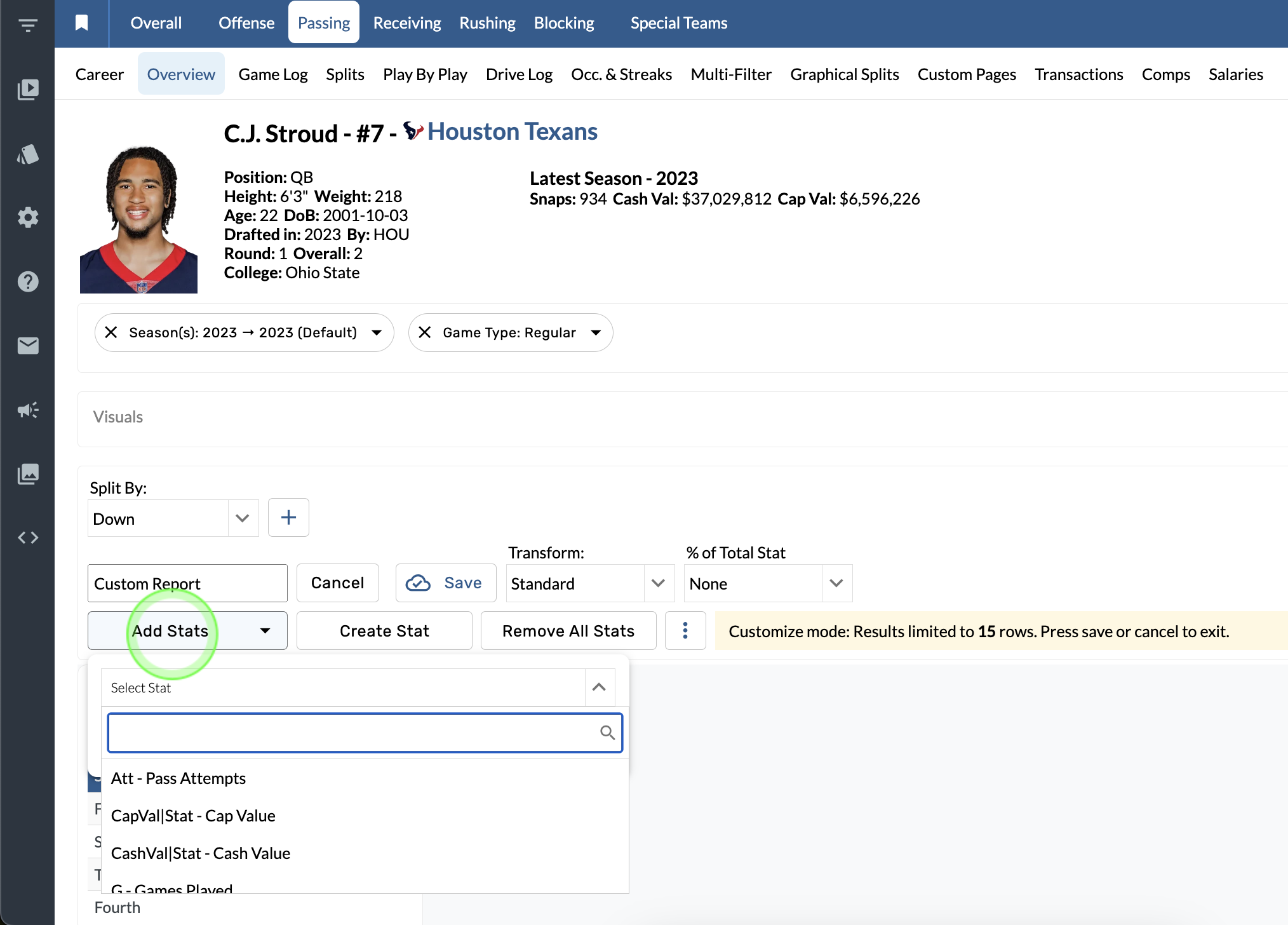
Add Stats
-
Open the Custom Report Builder.
-
Tap Add Stats.
-
Browse, search, and select stats to add to the report.
Organize stats
-
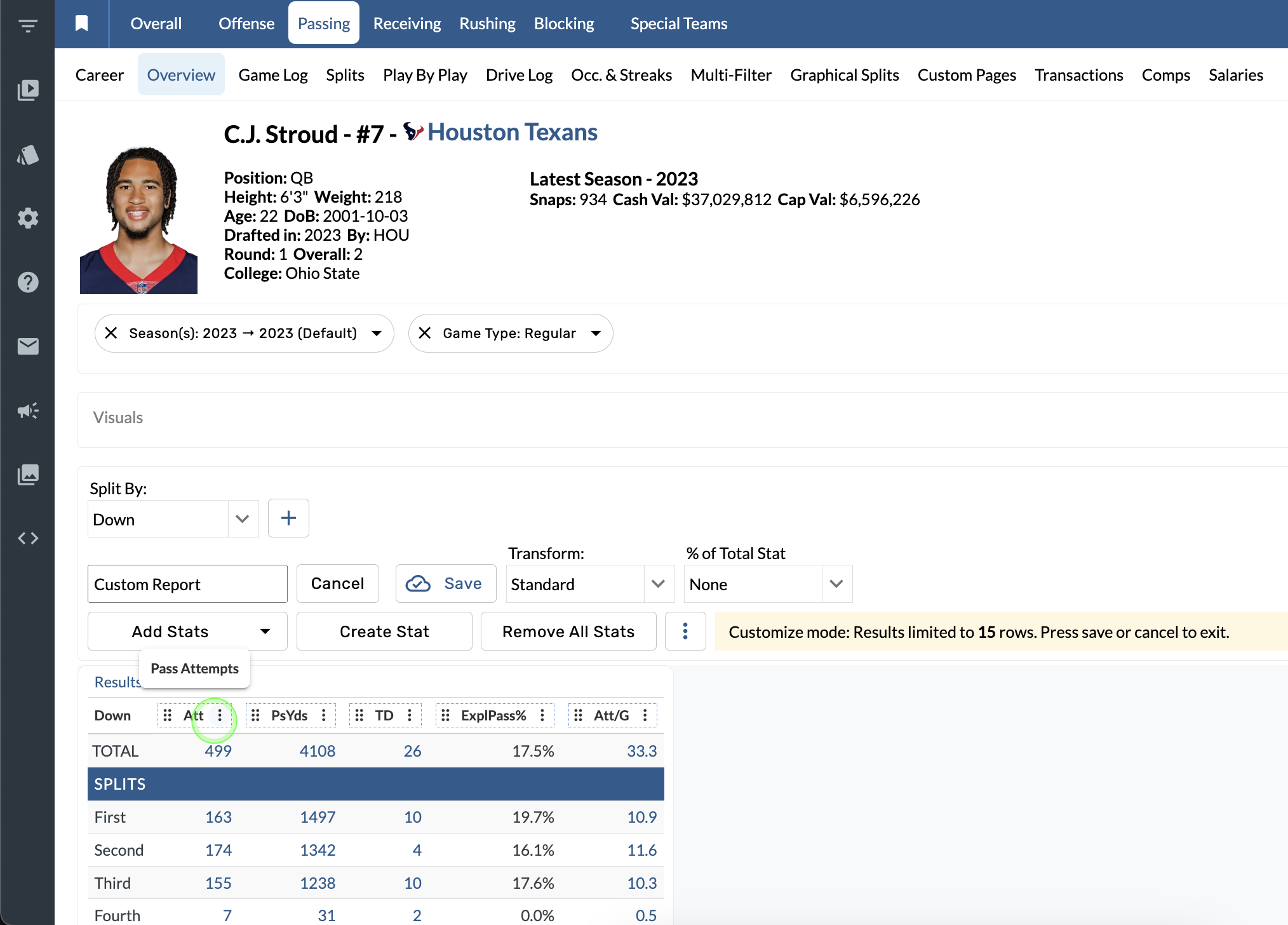
Click and hold a column.
-
Drag it left or right to where you want it in the report.
Sort Order
-
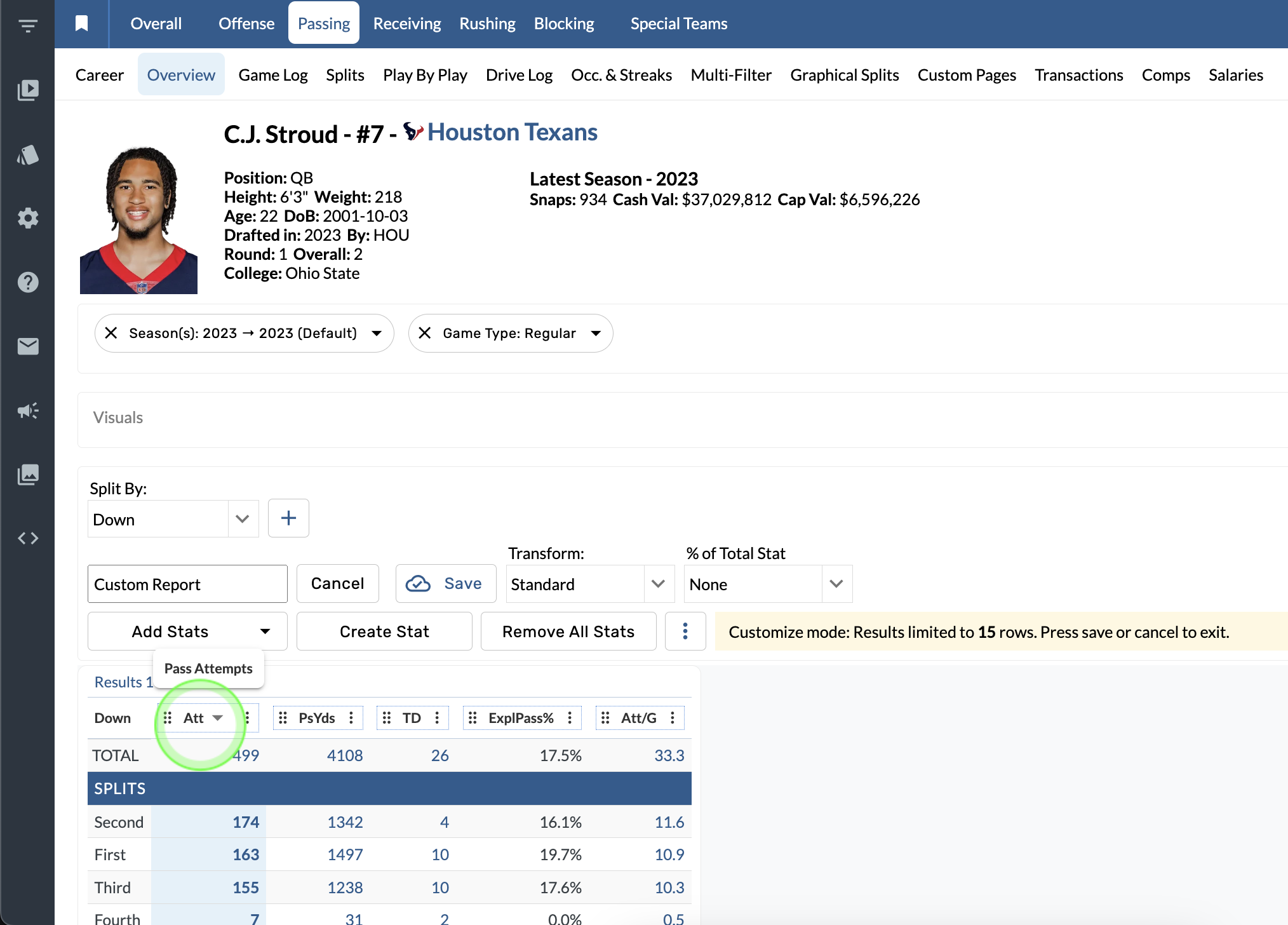
Select a stat in the table header.
The stat you choose to sort by also determines the Qualifications for the leaderboard.
More Options
Choose an Entity
-
Open the Custom Report Builder.
-
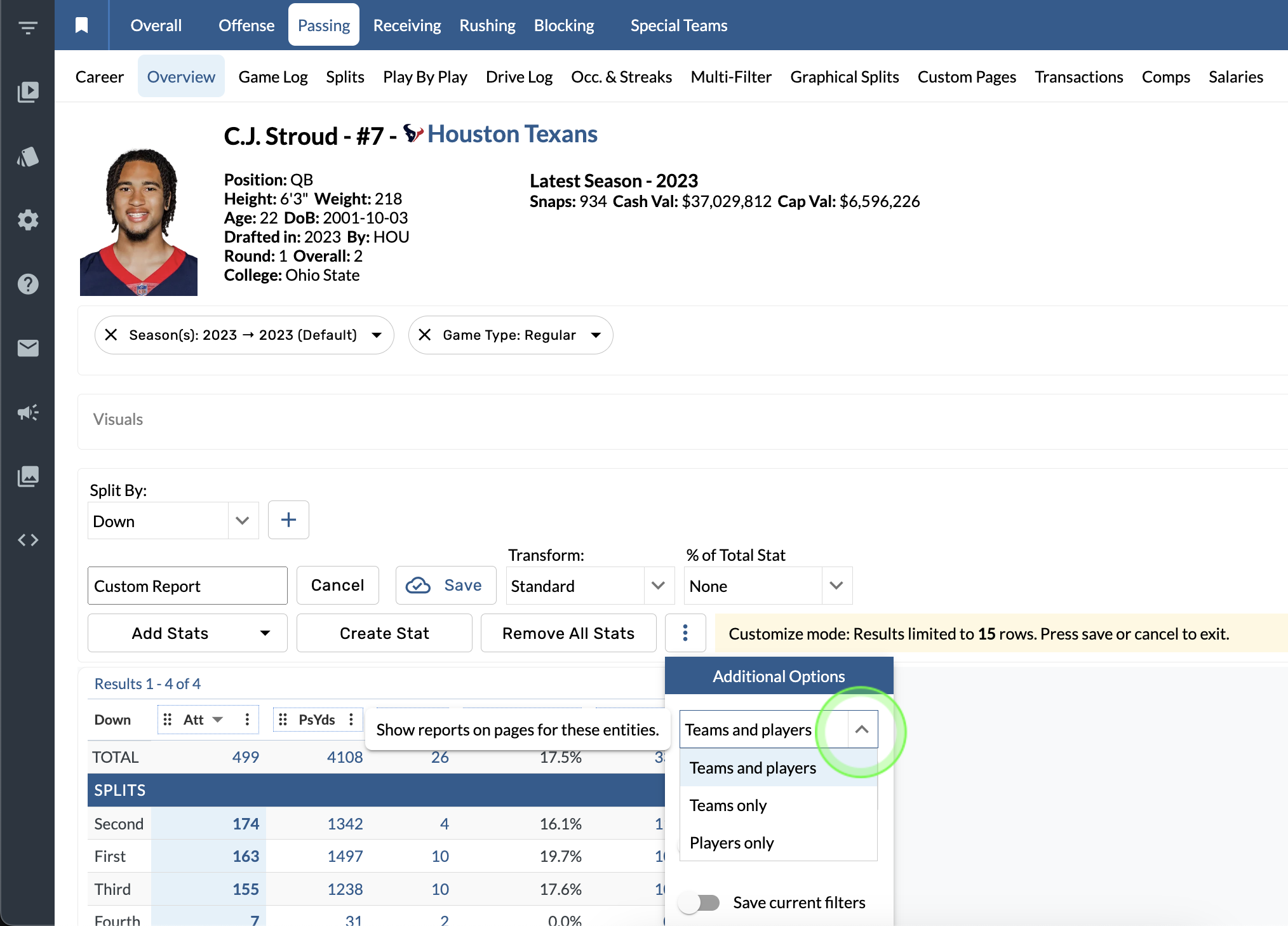
Select More Options.
-
Tap the top dropdown menu and choose an option.
Choose a Scope
-
Open the Custom Report Builder.
-
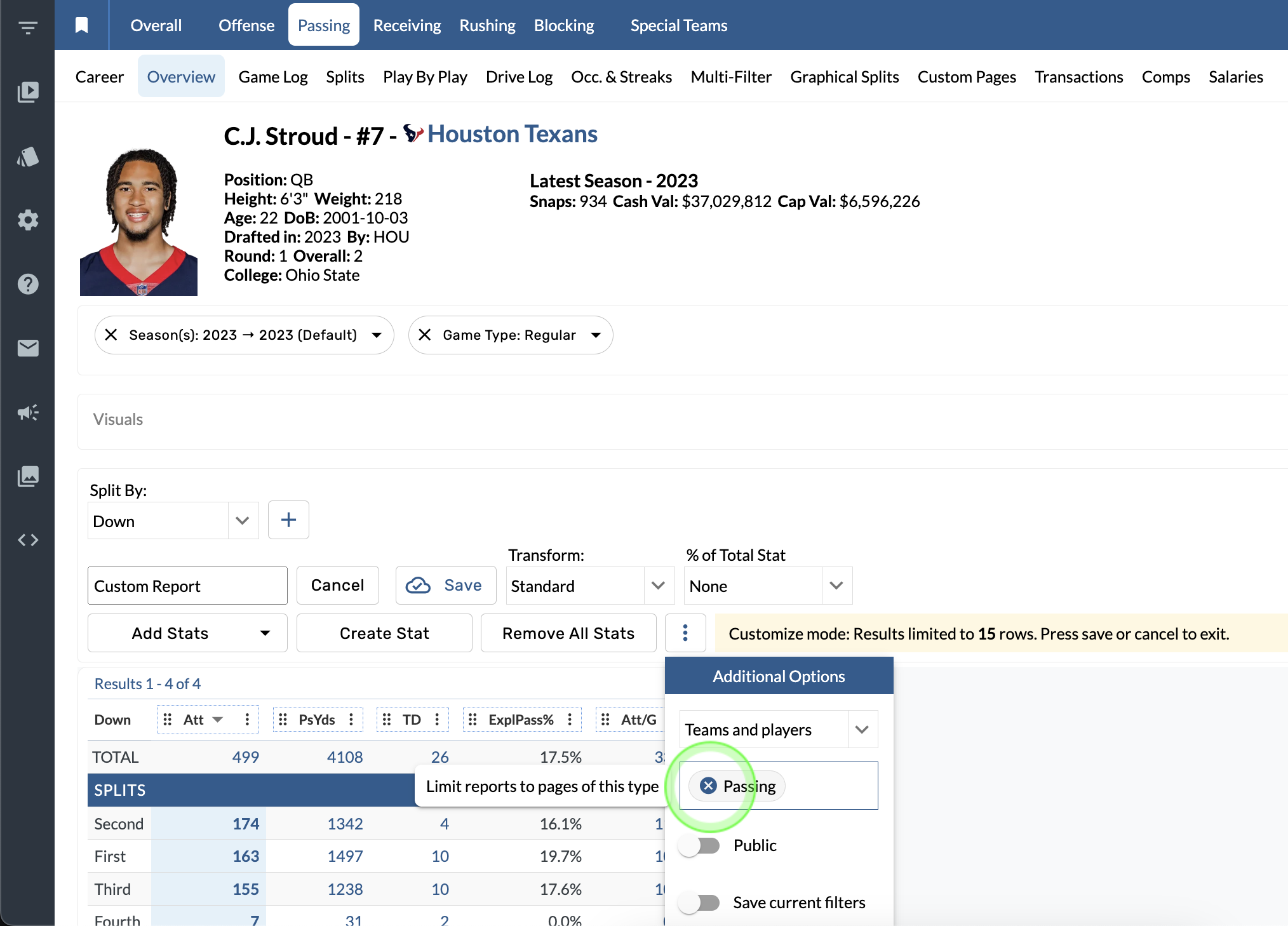
Select More Options.
-
Choose a Scope for the report from the menu.
Public Reports
-
Open the Custom Report Builder.
-
Select More Options.
-
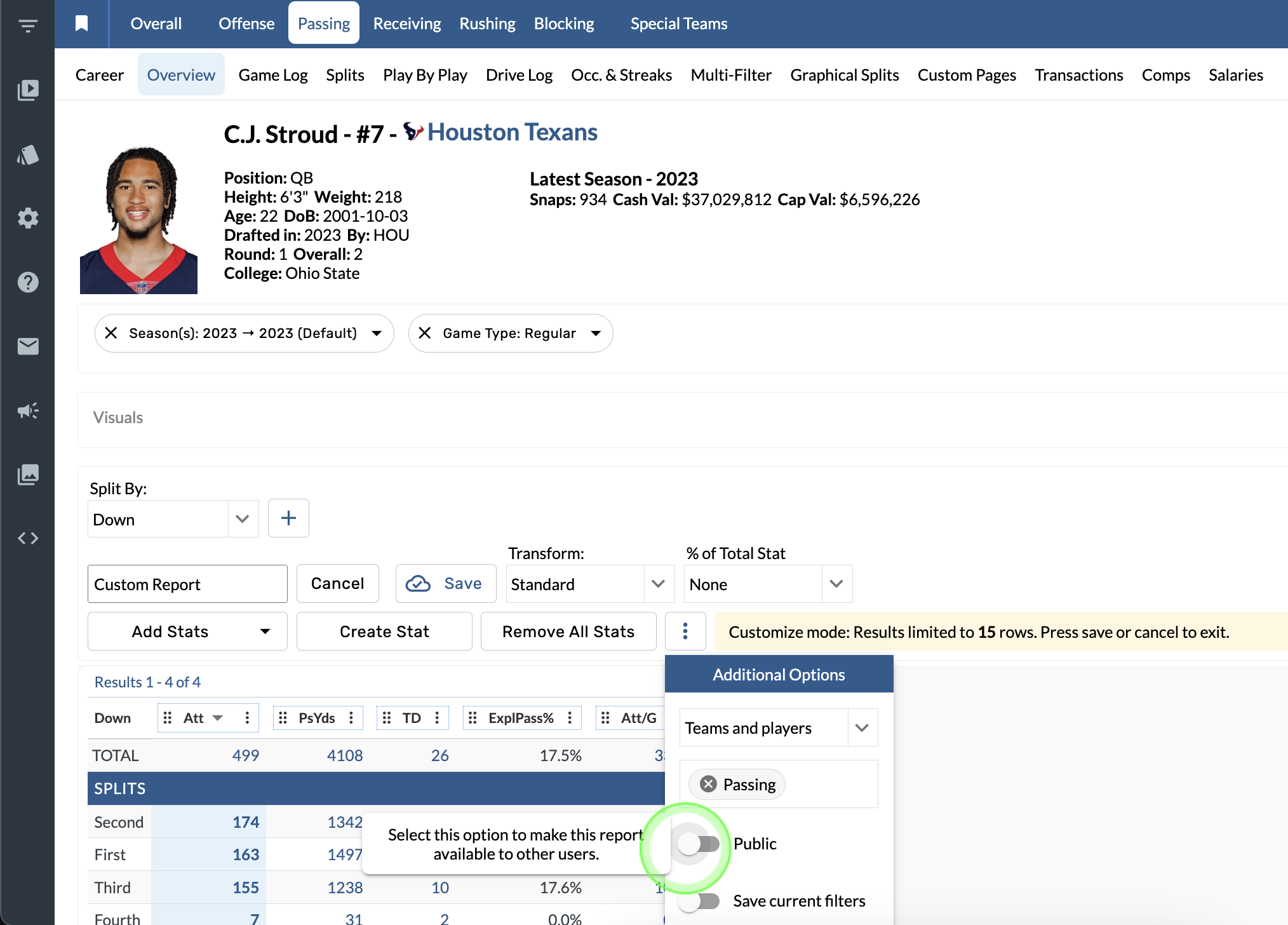
Tap the Public button to make the report available to everyone.
You need an Admin account to make a public report.
Save current filters
-
Open the Custom Report Builder.
-
Select More Options.
-
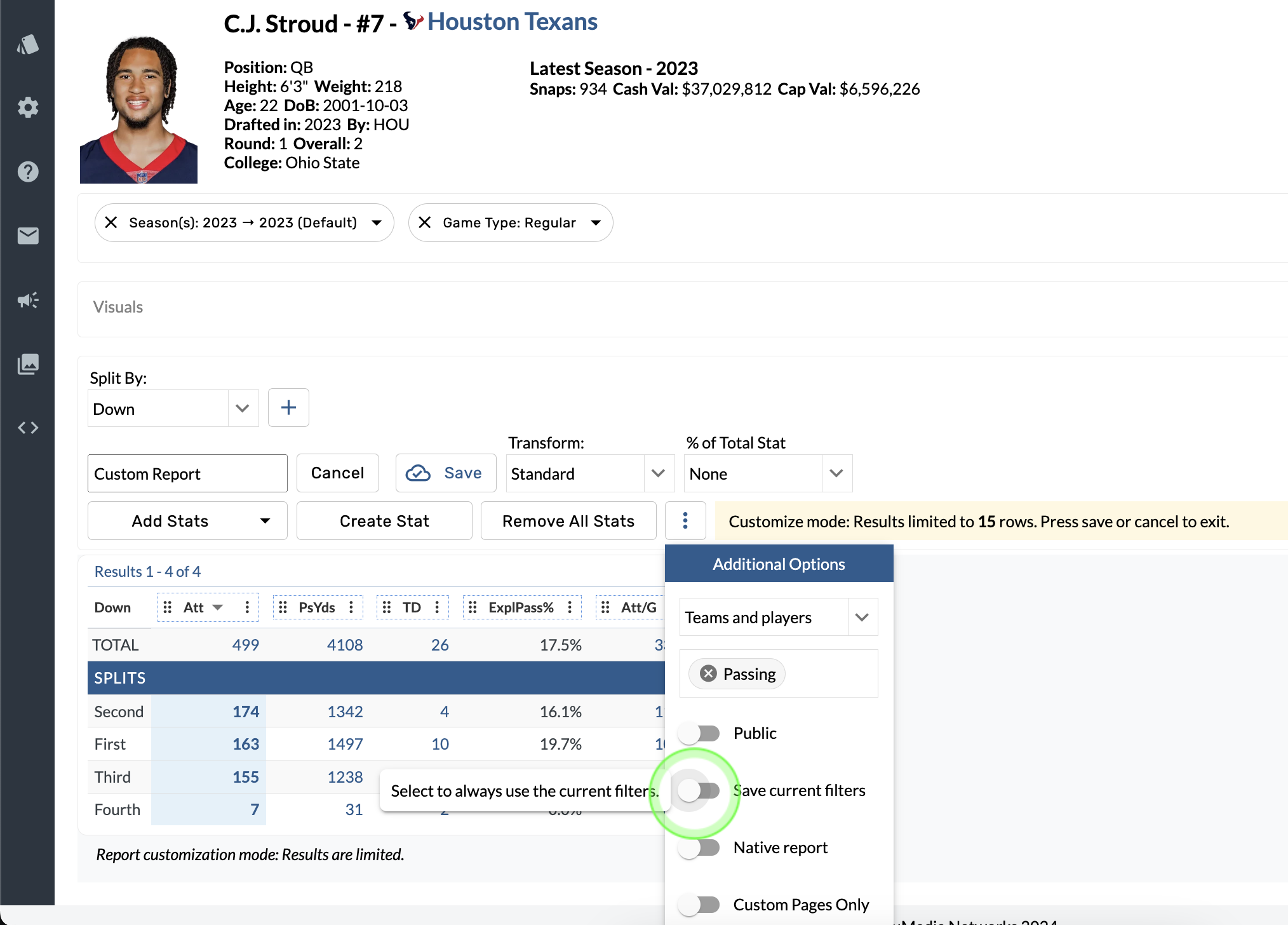
Tap the Save current filters button.
Native report
-
Open the Custom Report Builder.
-
Select More Options.
-
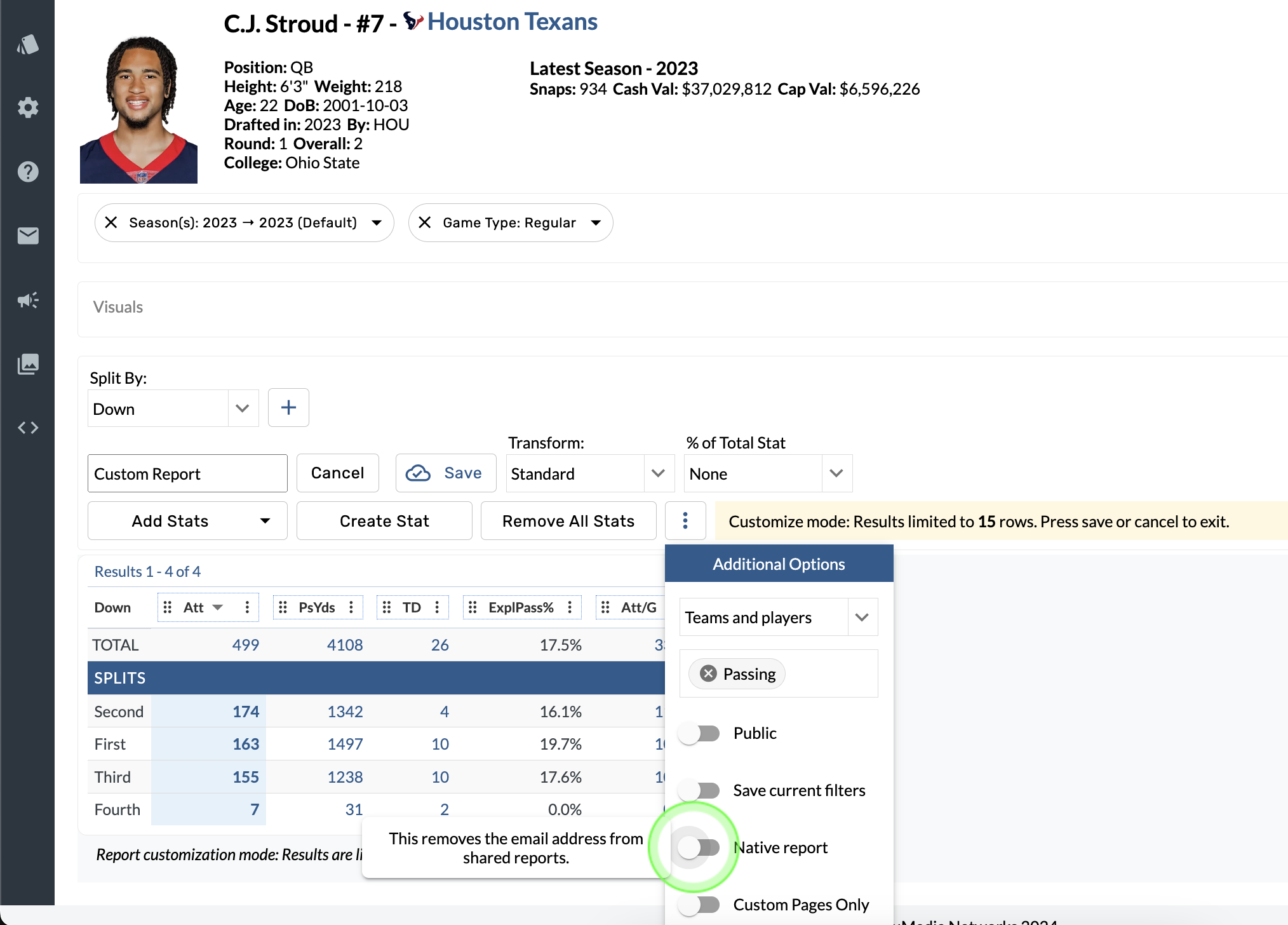
Tap the Native report button.
Custom Pages only
-
Open the Custom Report Builder.
-
Select More Options.
-
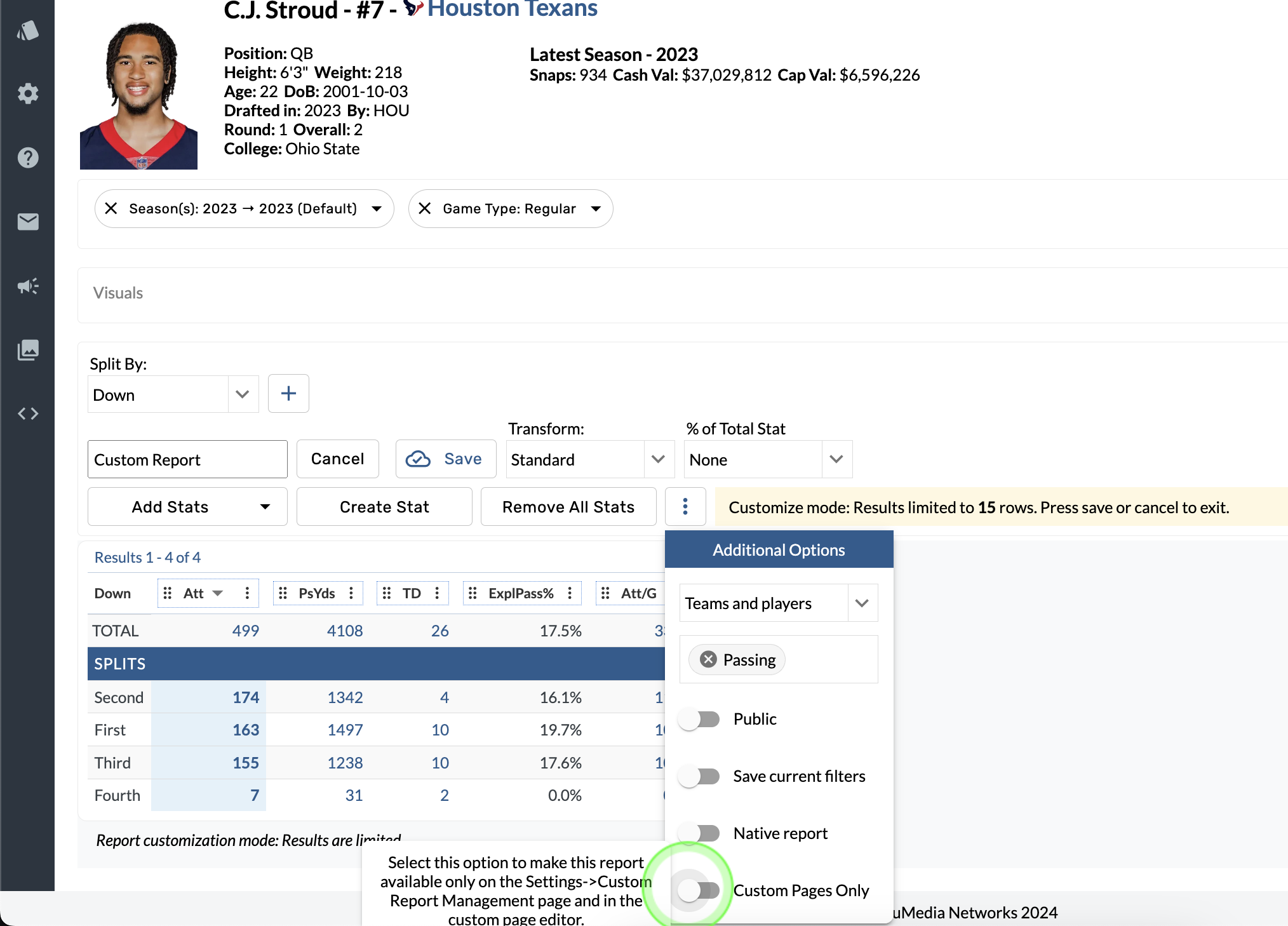
Tap the Custom Pages Only button.
Once you make a report for Custom Pages Only, it no longer appears in the reports menu but is available to edit in User Settings > Reports Management.
Contact Us
Email the Support team
nflsupport@trumedianetworks.com
ncaasupport@trumedianetworks.com