Stat Equation
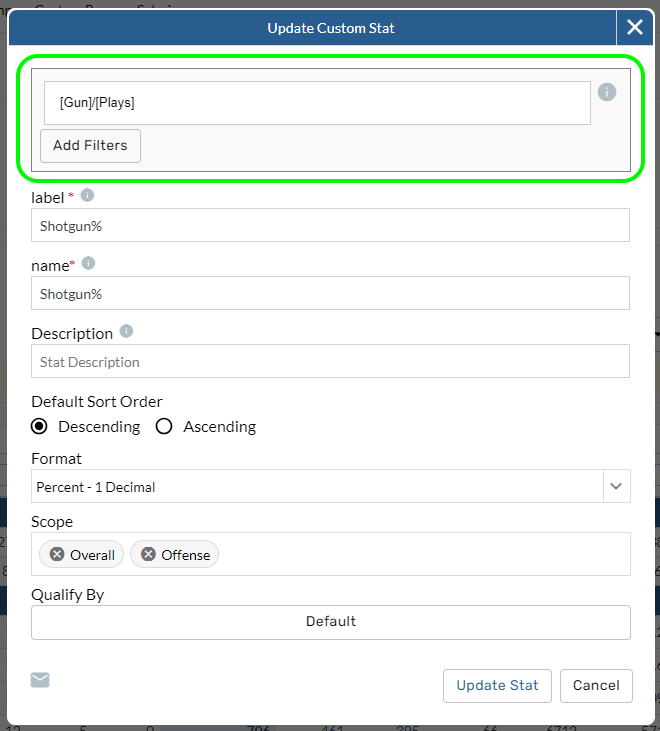
Produce the equation with existing stats and filters.
-
Type an open bracket to search for a stat.
-
Tap to select stats from the dropdown menu.
-
Use math operators to produce an equation.
Label, Name, and Description
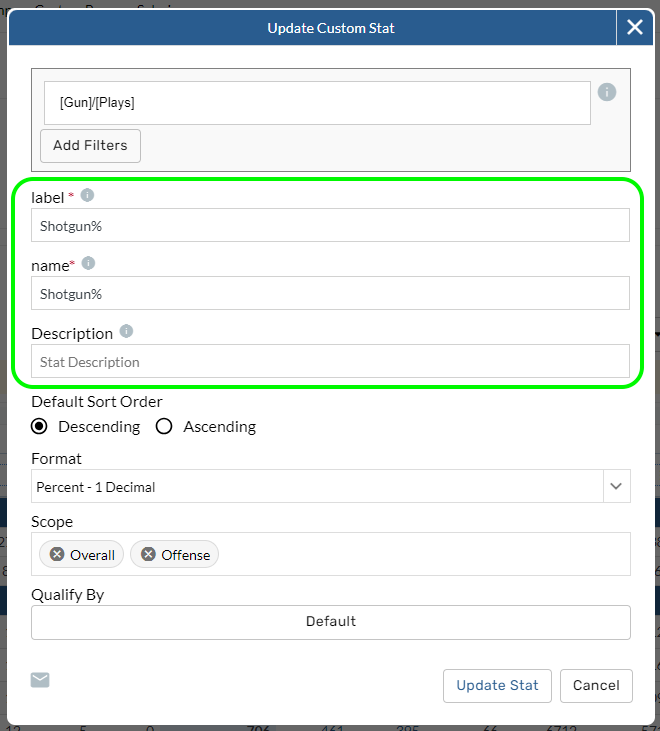
Choose a label to identify the new stat in tables and use the name and description options to provide more context in the tooltips and glossary.
Label
Column header for the stat in the table.
Name
Additional information shown in Add Stats menu.
Description
Additional information available in the tooltips and glossary.
Label - column header for the stat in a table
Name - more information shown in the Add Stats dropdown.
Description - additional information available in the tooltips and glossary.
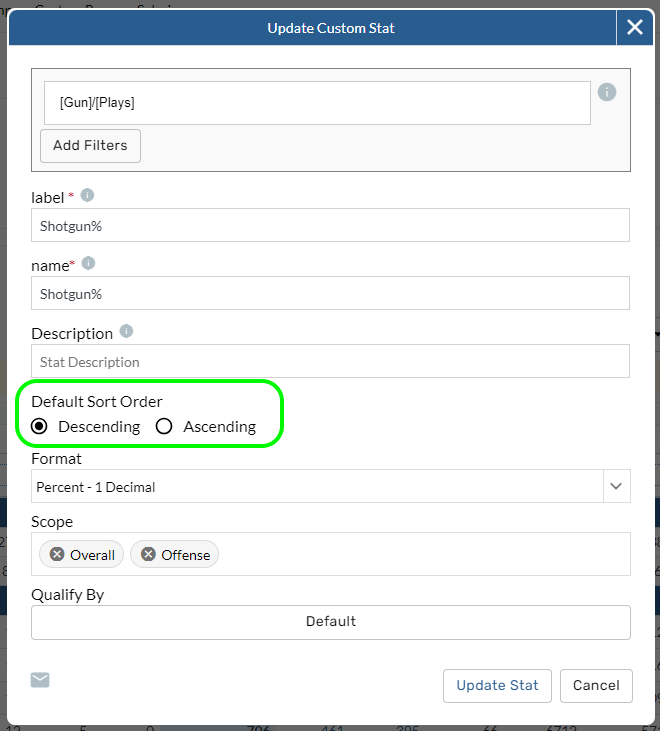
Default Sort Order
Choose a sort order for this stat when it is selected on a report.
Ascending
Smallest to largest.
Descending
Largest to smallest
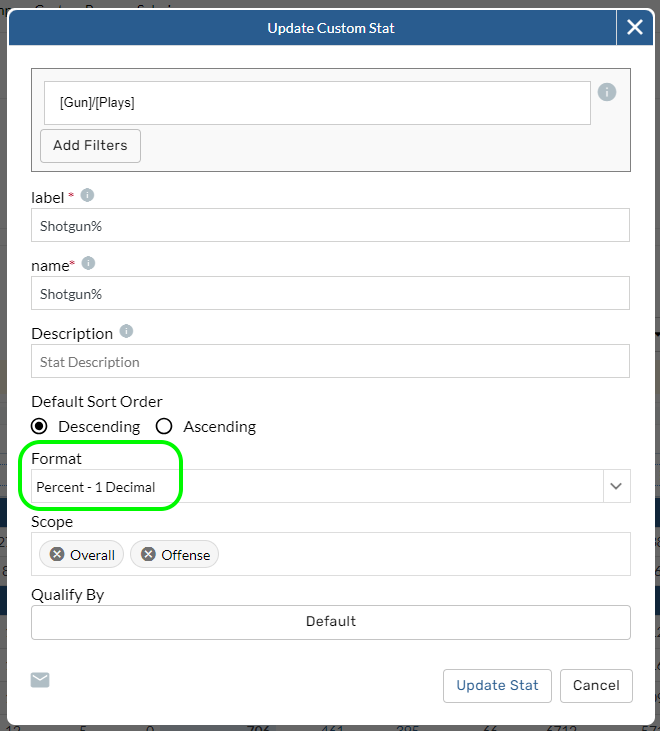
Format
Set which type of stat you want to create. Here are a few questions to ask as you choose a format:
-
Is it a counting stat or a rate stat?
-
How do you want to display the number on a table?
-
How many decimals points do you want to show?
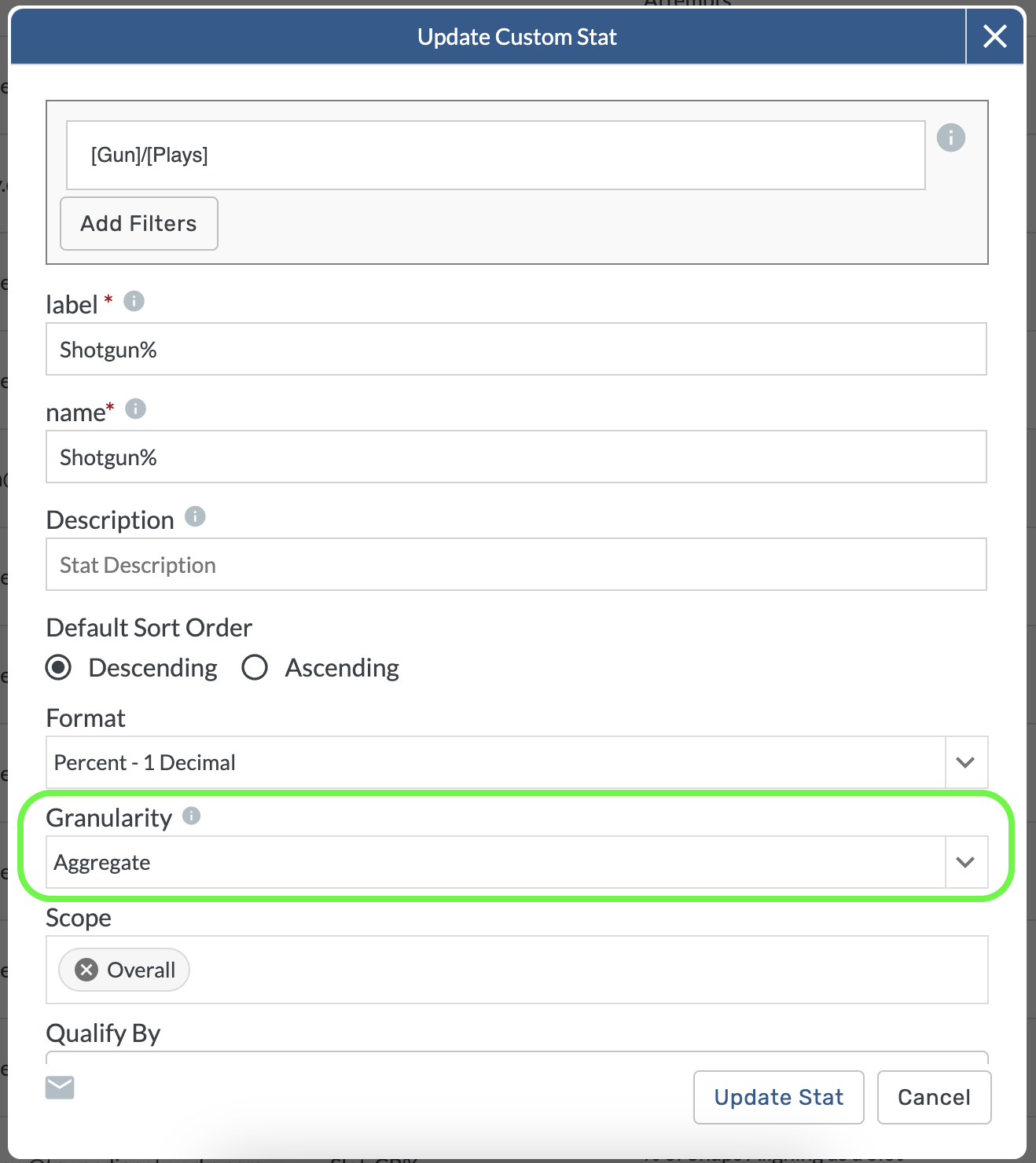
Granularity
Aggregate stats apply to groups of plays, such as all the passes for a quarterback in a game or season.
Event level stats apply to individual plays in a game.
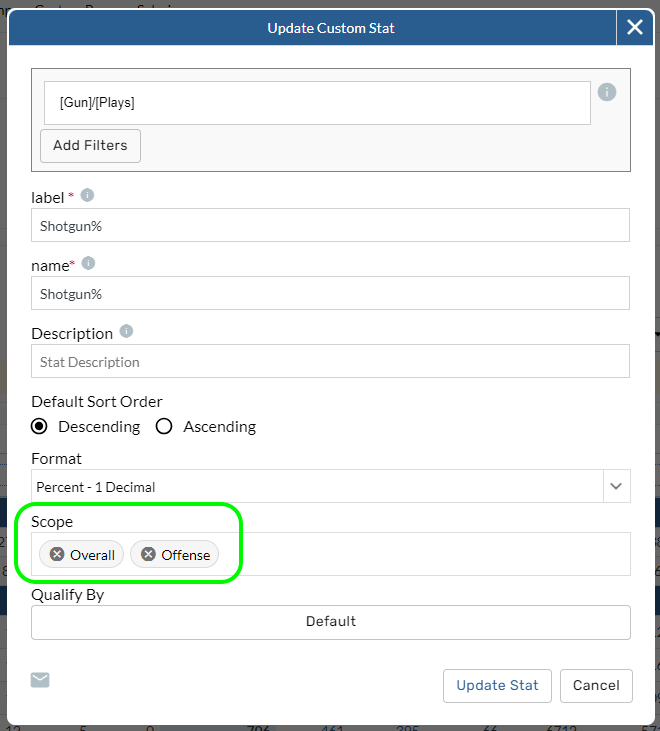
Scope
Each aspect of the game (hitting, pitching, etc.) is consider a unique scope in TruMedia. This selection of determines which reports this new stat is available to add on.
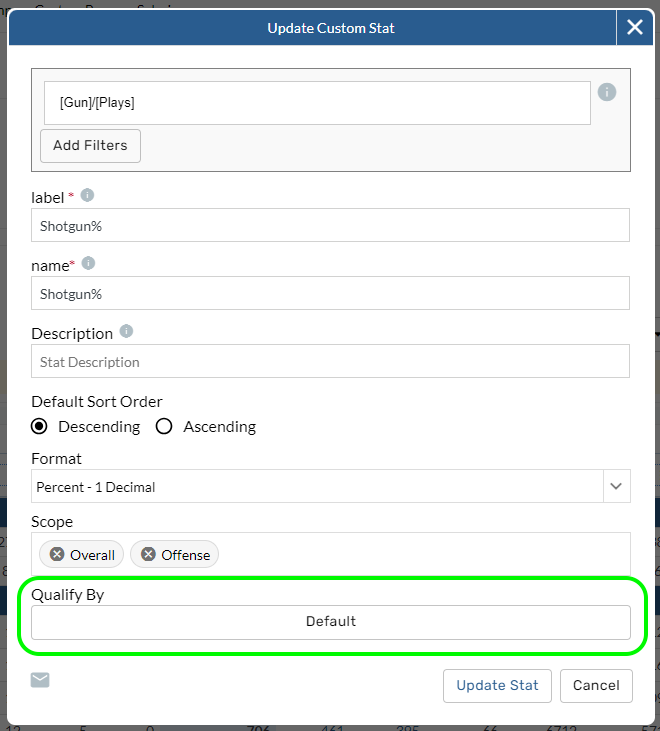
Qualify By
Set the sample that qualifies a team or player for this stat.
-
Open the Qualify By menu.
-
Tap the Select Stat menu and choose a stat.
-
Choose a math operator and the number threshold to qualify for this stat.
-
Tap the plus sign on the right to add the qualification.
This stat example below is set to qualify any player that had one or more opportunities to go first to third on a single.